How a Client Creates a CNC‑Ready File in a Drawing or CAD Program Most CNC projects start with a digital design, and the good news is that clients can use almost any vector‑based drawing program (like Illustrator, Inkscape, or Affinity Designer) or a CAD program (like Fusion 360, SketchUp, or FreeCAD) to create it. The goal is to produce a clean, accurate 2D or 3D file that the CNC software can convert into toolpaths.
1. Start With a Clean Digital Design
Clients begin by creating their shapes, outlines, or models in a program they’re comfortable with.
In drawing programs, they work with vector paths.
In CAD programs, they build sketches and models with precise dimensions.
The key is keeping lines clean, closed, and organized so the CNC can follow them accurately.
2. Set Real‑World Dimensions
CNC machines cut in real units, so the design must be sized correctly.
Clients make sure their drawing uses inches or millimeters, not pixels, and that every part of the design matches the intended physical size.
3. Organize the Design for Cutting
Good organization makes CNC cutting smoother.
Clients often:
Put different operations on separate layers (cuts, engraves, pockets).
Remove duplicate lines or overlapping shapes.
Convert text to outlines/paths so the CNC can read it.
4. Export to a CNC‑Friendly Format
Once the design is ready, the client exports it in a format the CNC software can read.
Common formats include:
SVG or DXF for 2D cutting
STEP, IGES, or STL for 3D carving
These formats preserve the geometry cleanly so the CNC software can generate toolpaths.
5. Import Into CAM Software
The exported file is then loaded into CAM (Computer‑Aided Manufacturing) software — the program that creates the toolpaths the CNC will follow.
The client or CNC operator sets:
Cut depth
Tool type
Speeds and feeds
Order of operations
This step turns the drawing into machine‑ready instructions.
6. Final Review Before Cutting
Before anything is cut, the toolpaths are simulated to check for errors.
Once everything looks good, the file is saved in the CNC machine’s preferred format (often G‑code) and is ready to run.
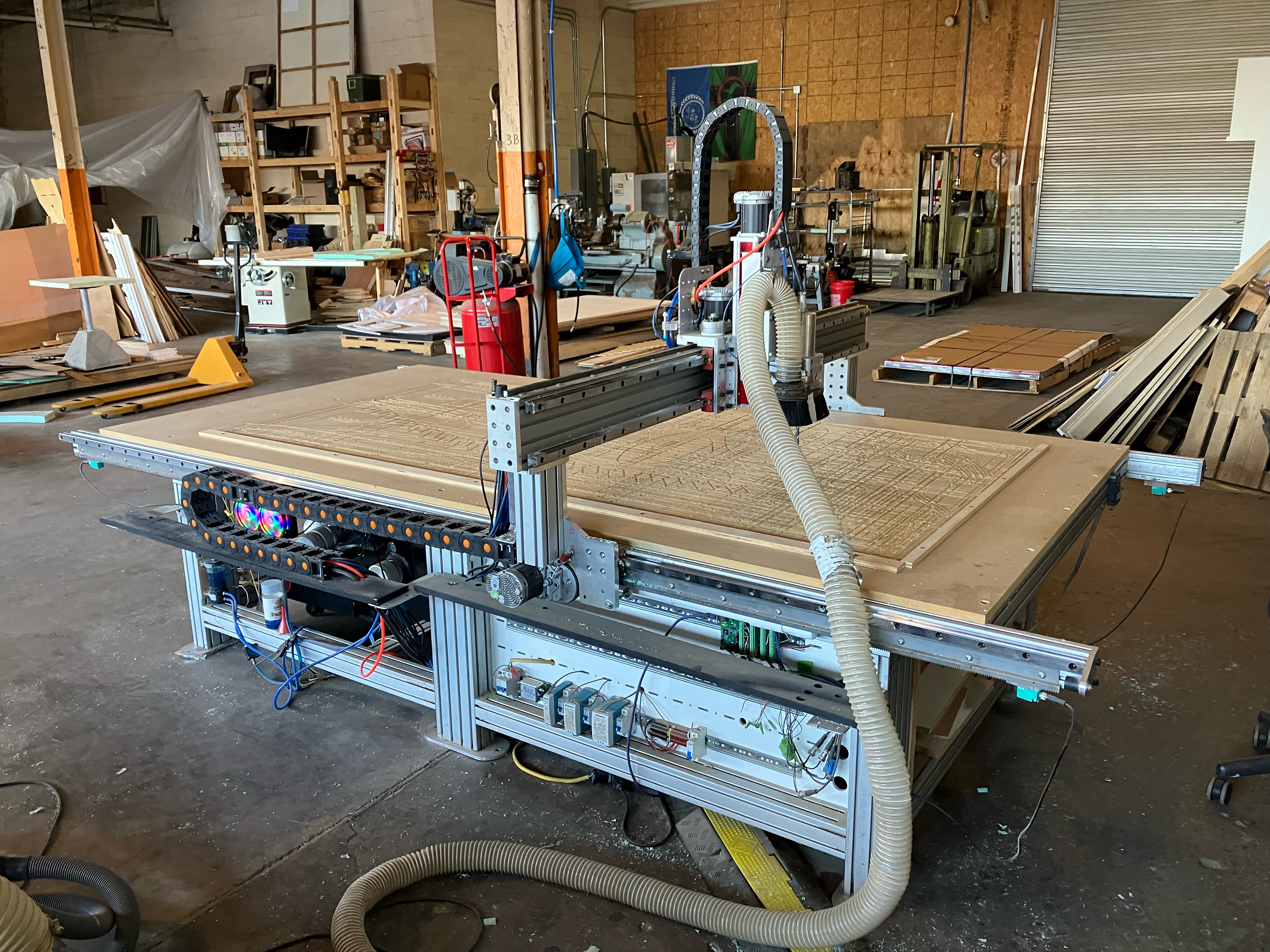 CNC Machine - 5' x 10'
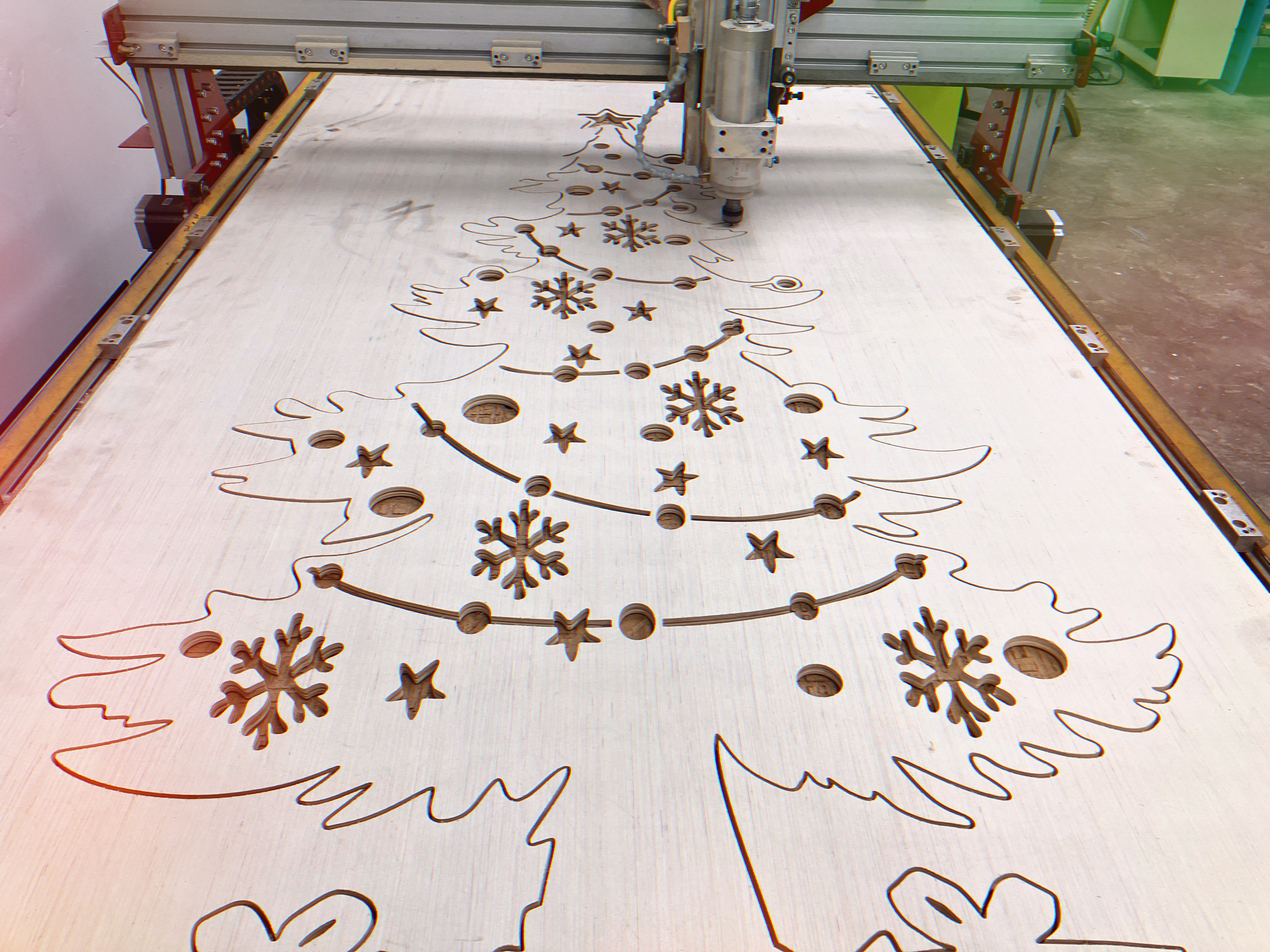 CNC Milled Plywood Xmas Tree
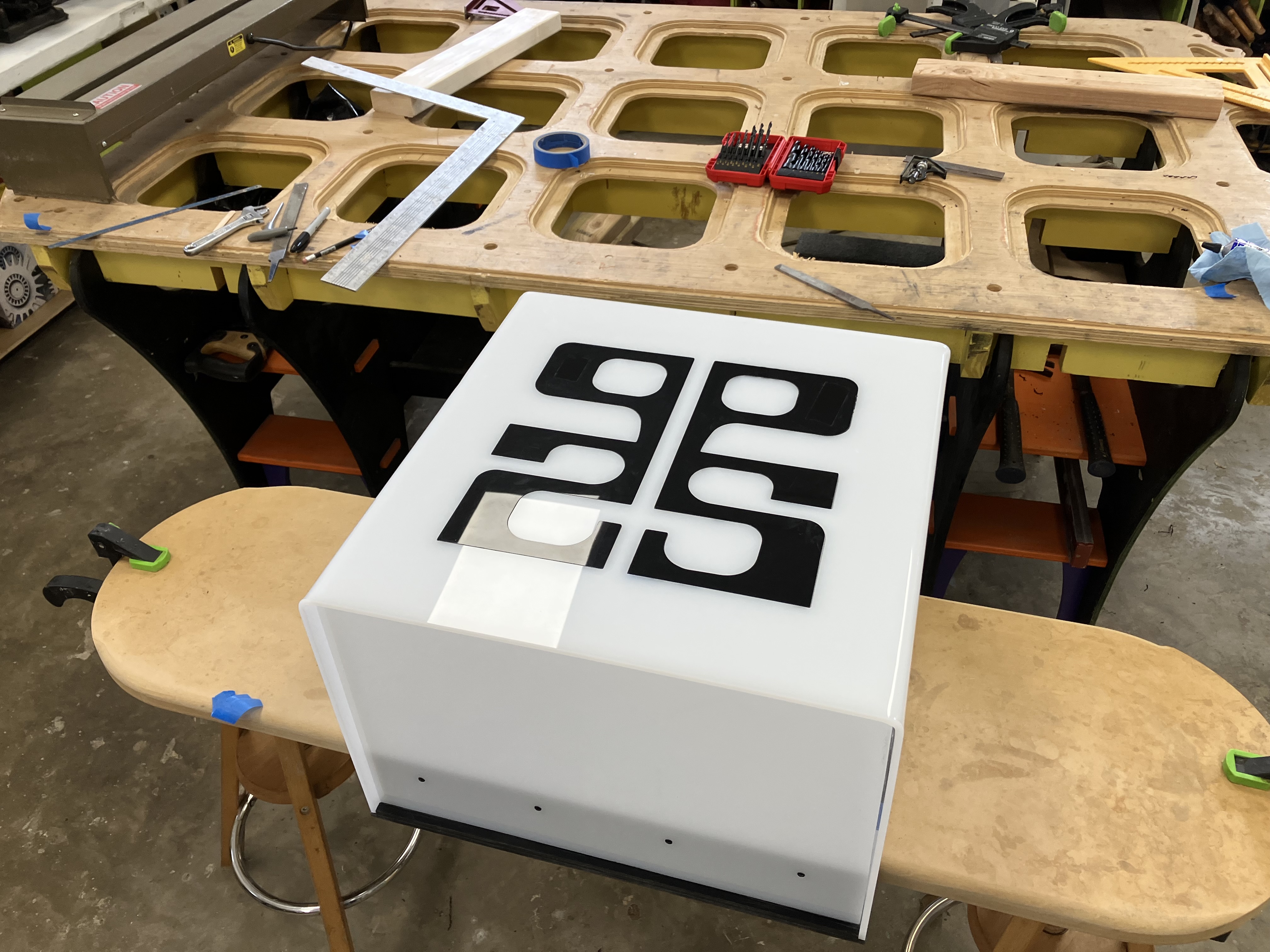 CNC Milled Custom Lighting
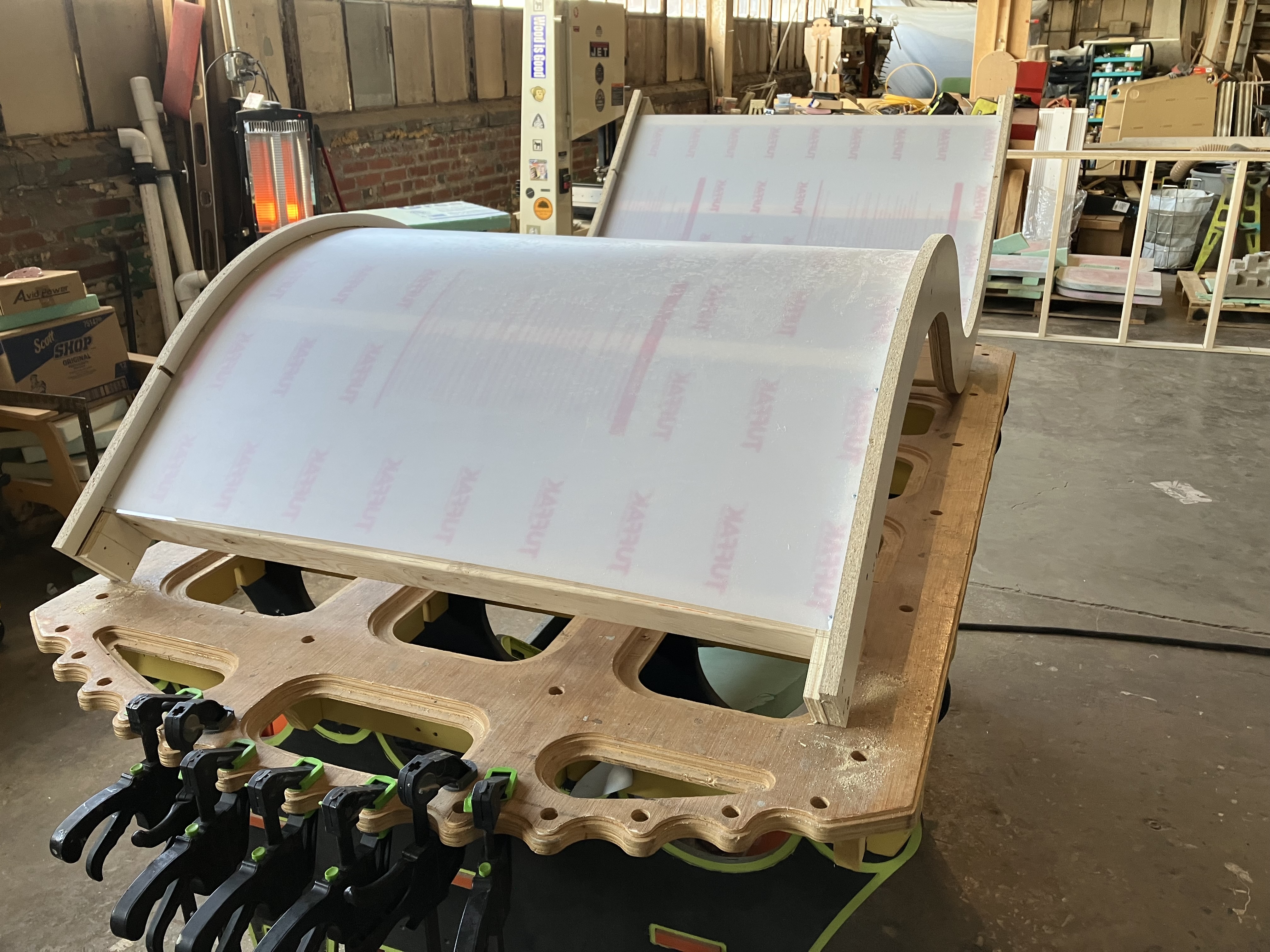 CNC Milled Custom Concrete Form